1. Onboarding: Temp Password Assigned Upon User Registration
Upon registration, the system will automatically generate a temporary password and assign it to the user account.
This password will be used for initial login.
2. Changing Password for first time login (All User)
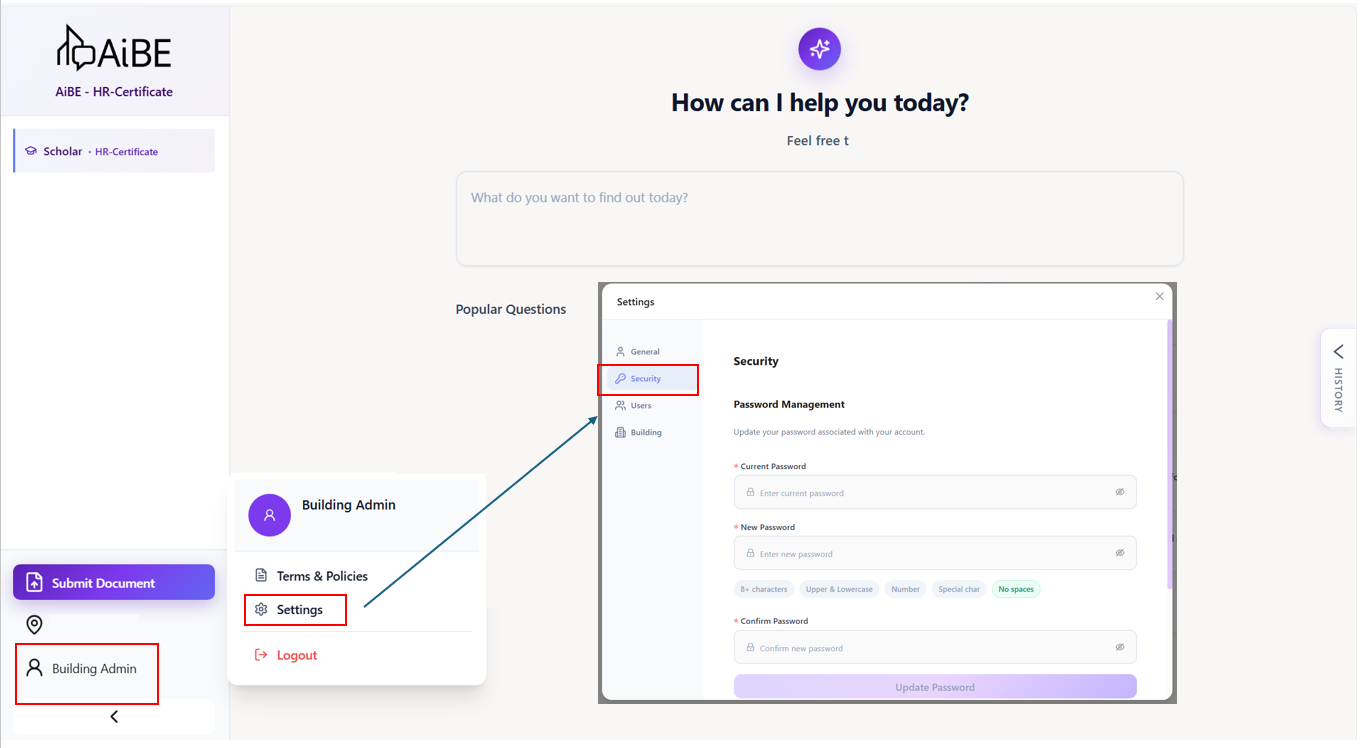
Upon logging in, you can change the password under profile management icon --> Settings --> Security
3. Changing of Category (All User)
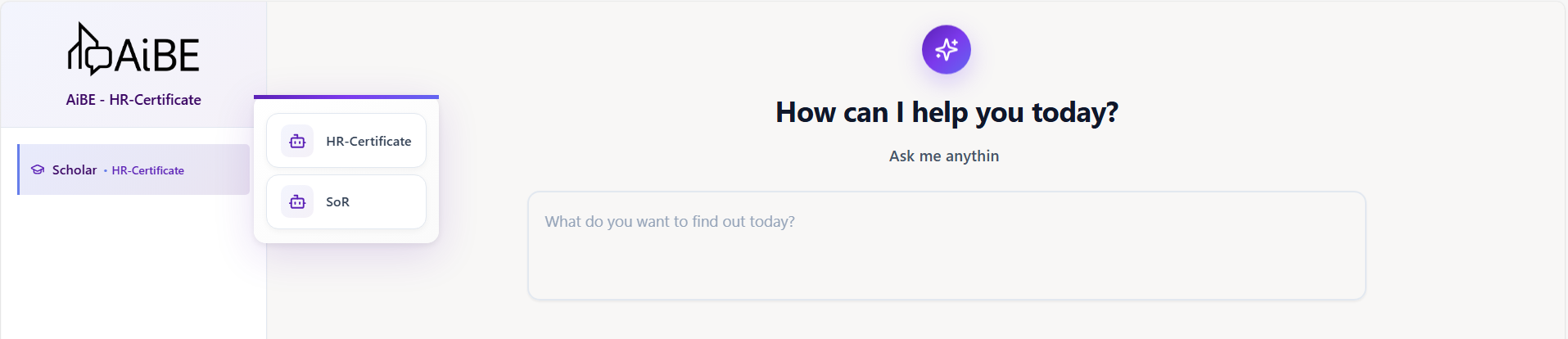
Hover over the module (Scholar, Operator, or Dweller). You will see the list of categories created for your company.
Please select the category that best matches the questions you have.
4. Adding User (For Administration Role Only)
There is no limit on the number of new users that you can add!
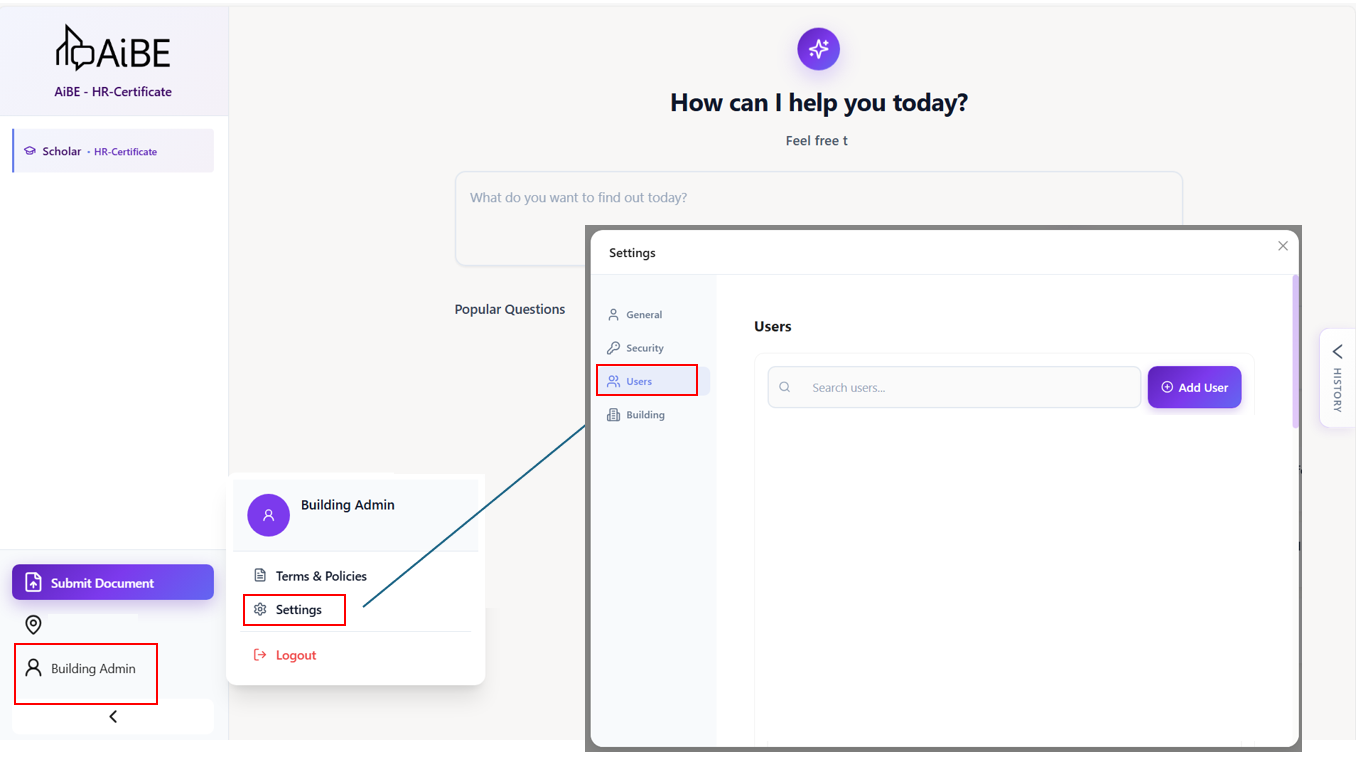
To add any user, go under profile management icon --> Settings --> User --> Add User
5. Role and Building Assignment (For Administration Role Only)
Enter the email account and select the role of that particular user to provide them with access to a particular use case
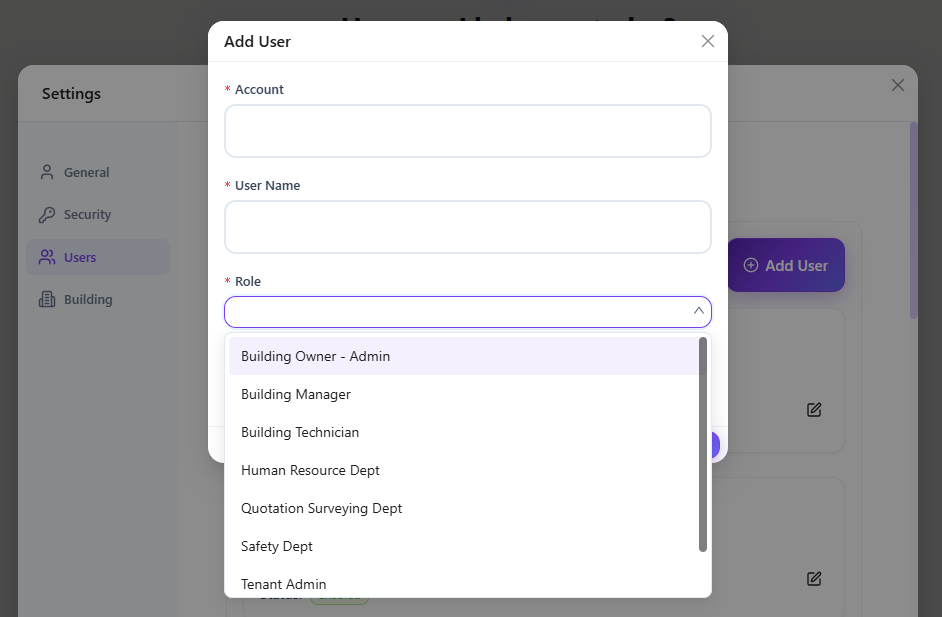
There will also be a building dropdown list for admin to select the building that the user can access
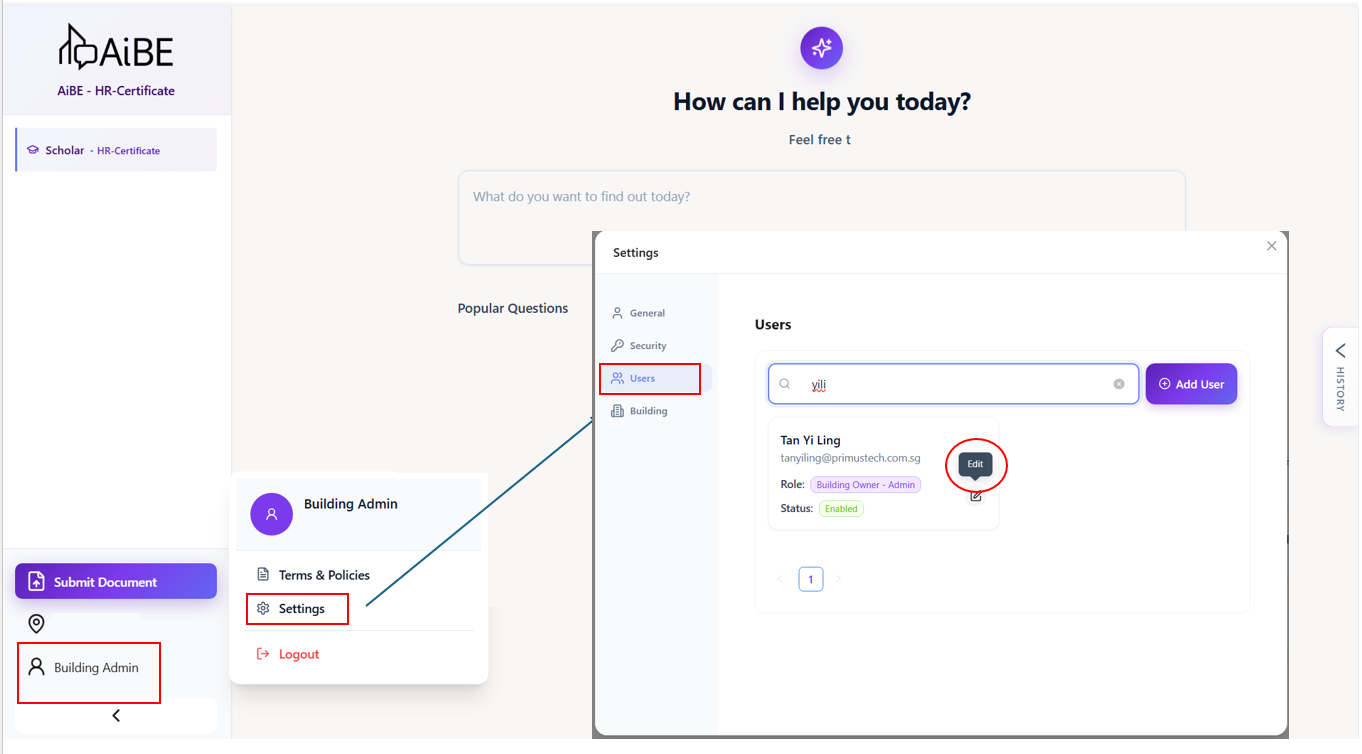
6. Editing User Permission (For Administration Role Only)
To edit any user role or permission, go under profile management icon --> Settings --> User, search and select the user you want to make amendment and edit accordingly.
5 Delete User (For Administration Role Only)
Delete function is currently unavailable but you can disable user.
To permanently delete any user, please reach out by submitting ticket or email to ebu-support@primustech.com.sg
Was this article helpful?
That’s Great!
Thank you for your feedback
Sorry! We couldn't be helpful
Thank you for your feedback
Feedback sent
We appreciate your effort and will try to fix the article